Save encrypted transcripts in History
Turn on transcript saving to keep sessions in your History. Your browser encrypts the text before upload. Search and read it on your device, then copy or delete it as needed.
SalamAI can save transcripts and create summaries for supported sessions. Get the key points, decisions and tasks after a meeting or event. You can also offer listeners a PDF summary or transcript.
In short
Updated
Supported SalamAI sessions can save a transcript and create an optional structured summary of key points, decisions and tasks, in up to five languages. Transcripts download as Markdown text and captions as SRT subtitle files when saving is enabled. If the organiser enables listener documents, approved attendees can request a PDF summary, a full transcript or both when each run stops, on their phone or by email. Standalone Transcribe only sessions save text but do not create summaries. In supported voice sessions, High privacy mode saves none of these. AI summaries can contain mistakes, so check names, figures and deadlines against the transcript.
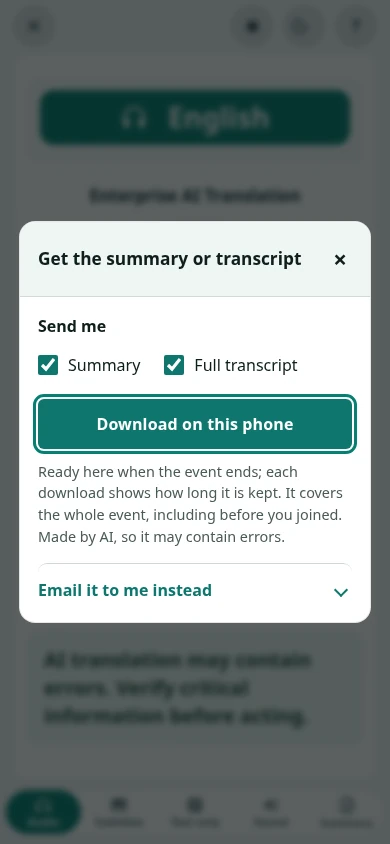
First, the organiser enables session documents before the session starts and agrees that documents can cover the whole run, including speech from before a listener joined. During the event, approved listeners request a summary, a full transcript or both from their Companion page. When the operator presses Stop and processing finishes, listeners can download a PDF on their phone or choose email delivery. Downloaded files and emailed copies cannot be recalled, so only enable this for content you are happy to share. Processing and document delivery may add charges, and in supported voice sessions, High privacy mode does not save these documents.
Read nextLive captions & transcription →Translation privacy & security →
Saved session content
Turn on transcript saving to keep sessions in your History. Your browser encrypts the text before upload. Search and read it on your device, then copy or delete it as needed.
Turn on SRT subtitle files, Markdown text transcripts or both. Find them in Recordings by session and language, with original or translated text where available. Files are encrypted before upload. Access follows account or campaign rules. Long sessions may create numbered files.
Supported sessions can create a summary in up to five languages. Request it, then copy or download the result. The transcript is processed when you request a summary. Sharing it with the audience is a separate choice.
If session documents are enabled, approved Audience Companion listeners can request a summary or full transcript in their language. When the run stops and processing finishes, they can download a private PDF or choose email. This is separate from showing a summary on the audience page.
History, Rec & Transcripts and reports carry the console, session and run names, so Hall 1 · Talk 2 is easy to find. History also shows how each session ended, for example stopped by the operator or after silence.
Listener documents
Before the event, enable the Companion summary option and review its whole-event capture and sharing notice.
Approved listeners choose summary, full transcript or both. Their Companion page keeps a private download link; email delivery is optional.
Each run gets its own summary and transcript. Pressing Stop starts document preparation, and the PDF becomes available after processing, under the applicable access and retention limits.
Reuse your setup
Export a password-protected backup of your console settings, languages, display options and audio devices. Keep the password safe. The backup does not include recordings or transcripts.
Review a backup before applying it. Resolve missing devices on the new machine and reuse audience links where your access still permits.
Caption tools
Show a language on a dedicated screen, use a minimal caption view, or create a token-protected OBS Browser Source overlay where enabled.
Where enabled, share a live caption feed for a language and text track. WebVTT is a text format used by caption tools. Other software can request updates or receive them live. The host controls access and expiry.
Inside SalamAI
Listeners can request a summary or full transcript. They can download it on their phone or choose email.
Common questions
No. Standalone Transcribe only sessions do not create summaries. To get both, choose a supported session with transcript capture and summaries enabled before starting.
Supported sessions can save Markdown text transcripts and SRT subtitle files. If listener documents are enabled, approved attendees can request a PDF summary or full transcript. The available formats depend on your session and settings.
Yes. Listener documents can cover the whole event. The organiser must enable this sharing before the session. Downloaded files and emailed copies cannot be recalled.
Check important names, figures, decisions and deadlines against the transcript. AI summaries and translations can contain mistakes. Processing and document delivery may add charges.
Plan your event
Tell us your languages, crowd size and audio setup. We’ll show you SalamAI live and suggest the right setup for your event.
Already have an account? Open the console →