Choose your source
Connect a microphone or mixer. You can also capture tab or system audio where supported, or use a remote speaker. Panel sessions can select the active speaker from separate microphones.
Open the SalamAI console in your browser, connect your mic or mixer and choose the languages your audience needs. Then share translated audio and captions on speakers, screens or phones.
Open the consoleIn short
Updated
Setting up takes three steps. First, open the SalamAI console in a supported browser and connect your audio: a headset, room microphone, mixer or, where your browser supports it, computer audio. Second, choose the output languages your audience needs, up to ten from one console. Third, share the result: each language gets its own QR code and link for phones, and you can open a caption window on a projector or screen. During the session, the operator starts and stops translation and controls who can join. Test the sound, the languages and a guest phone before doors open, because AI processing adds a short delay.
The operator runs the session from the SalamAI console, the browser workspace for live translation. Before starting, they choose the translation type, the audio source and the output languages. During the session, they start and stop translation, watch the audio level, adjust each language’s volume and captions, and manage who can join through the audience links. They can also open caption windows for screens. Each Start to Stop is a run with its own name, report rows and documents, so when a talk finishes they press Stop, and the next talk starts a new run. Test the whole flow once before the real event, with the same computer, microphone and network.
Read nextOnline meeting & webinar translation →Audio setup & connectivity →
Set up a session
Connect a microphone or mixer. You can also capture tab or system audio where supported, or use a remote speaker. Panel sessions can select the active speaker from separate microphones.
Choose translated audio and subtitles, translated text, or captions in the original language. One-way translation supports up to ten output languages. Each language has separate controls and billing.
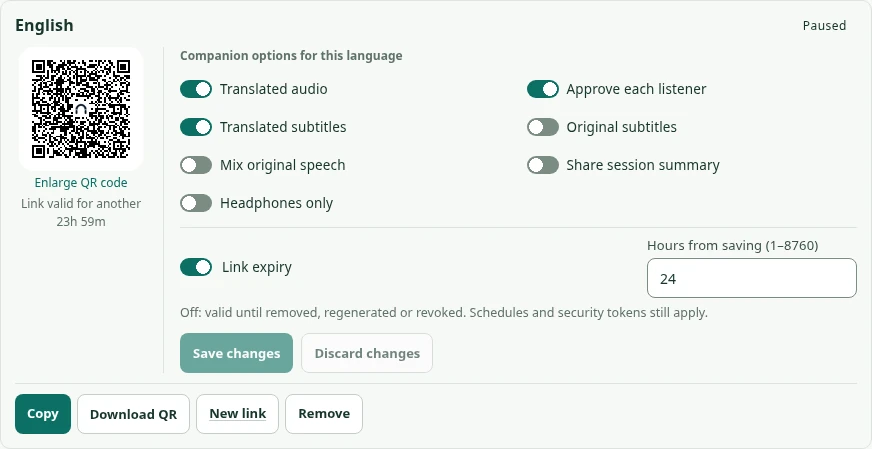
Play audio, show captions on a screen, or share a phone link for each language. Choose audio, captions, approval and expiry for each link.
Connect your equipment
Connecting a venue mixer or USB headsets? Follow the wiring diagrams and check the minimum requirements for the Console and Companion.
Explore connectivity & requirementsHow speech is processed
Mic, shared audio or a remote speaker
Choose a translation type in the console
Audio, captions or a transcript
Using the console
Use the left menu for translation, stations, reports, recordings, settings and help. Press Ctrl/Cmd + K to find a page.
Each browser tab is its own console with its own name and audience links. Before Start, name the session, such as Hall 1, and the run, such as Talk 2. Reports, History and transcripts use those names.
When you share a browser tab, window or screen, the console listens for up to five seconds. If the share has no sound, no session starts and the console tells you what was shared, so you can choose again. Translate an online meeting →
Search for a language by its name or native script. The console menus are available in English, Malay and Chinese.
Help Angel (beta) gives setup guidance in the console and campaign page when enabled. “Let the Angel see this screen” can share safe settings, status messages and recent errors. It does not read typed text, captions, transcripts, names, private lists or links. Turn this option off for general help.
Translation features
One speaker, up to ten languages. Explore One-way translation →
Two people, two languages, both directions. Explore Two-way conversation →
Scan a QR code and listen on your phone. Explore Companion Mode →
Bring in a presenter from anywhere. Explore Remote Speaker →
Live captions and saved transcripts. Explore Captions & transcription →
Two-way translation at every counter. Explore Translation stations →
Key points and decisions, after the event. Explore Summaries & transcripts →
Run translation from setup to report. Explore Event management →
See who listened, in which language. Explore Audience reports →
Inside SalamAI
Share a QR code for each audience language. It uses the SalamAI logo by default, or your organiser logo when configured. Set audio, captions and joining rules in the same place.
Common questions
You need an authorised SalamAI account, a supported browser, internet access and an audio source. The source can be a microphone, mixer or supported shared computer audio. Check the equipment and browser requirements.
No, it does not join the meeting. Share the meeting’s browser tab, or an app window or screen where your browser offers audio, from the console computer. SalamAI checks the share for sound before any session starts. Translate an online meeting.
The operator uses the SalamAI console to choose languages, start and stop translation, and manage audience access. A console is the browser workspace used to run the session.
Plan your event
Tell us your languages, crowd size and audio setup. We’ll show you SalamAI live and suggest the right setup for your event.
Already have an account? Open the console →