Let listeners choose their language
Share a separate link for each language. Listeners can switch between available channels, subject to each channel’s access settings.
Audience Companion lets people hear event translation and read captions on their own phones. Each language has its own QR code or link. Scan, open it in the browser and listen. No app to install.
Explore one-way sessions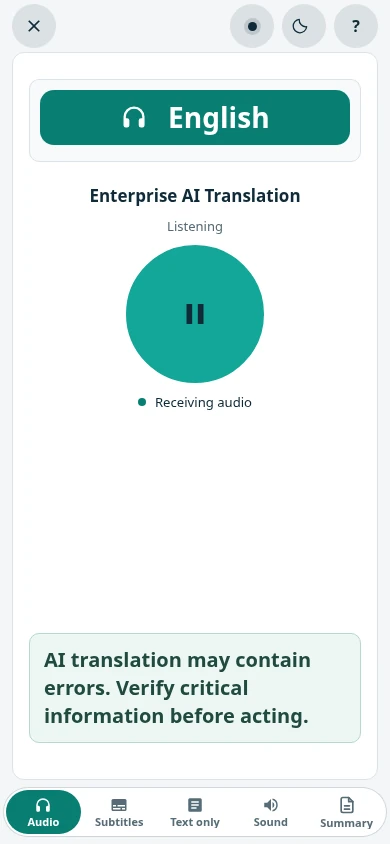
In short
Updated
Audience Companion gives each output language its own QR code and link. A listener scans the code, opens the page in their phone browser and taps Listen to hear translated audio, or reads live captions if the organiser allows them. Nothing needs installing. The organiser can ask for details, approve listeners and set the link to expire. In a shared hall, listeners should use their own headphones or earphones so phone speakers don’t disturb others. Phones need internet access throughout. Translated audio typically arrives about 6–20 seconds after the speaker, so audio and captions run a little behind the stage.
Listeners need a phone with a current browser, internet access and their own earphones or headphones for audio in a shared hall. They scan the QR code for their language, enter any details the organiser asks for, wait for approval if it is required, and tap Listen or Play. They should keep the page open during the session. People who would rather read can follow live captions without headphones, if the organiser allows captions. When the organiser enables session documents, approved listeners can also request a PDF summary or transcript after the event, on their phone or by email.
Read nextSimultaneous AI translation →Live captions & transcription →
How listeners join
Up to ten output channels
Audio, captions, admission and expiry
Listeners join in their browser
Share a separate link for each language. Listeners can switch between available channels, subject to each channel’s access settings.
Choose whether a channel shares audio, original or translated subtitles, an original-audio mix, or an optional post-session summary. Set whether approval is required and manage the listener list.
Text-only listening supports subtitle-only and same-language caption sessions. An organisation-wide text-only policy can restrict audio sharing.
Listeners can join, leave and return. Review joining requests in the listener list. Download high-resolution QR codes for signs and event materials.
Links default to 24 hours. Change the expiry or disable automatic expiry without replacing the QR code. Removing or regenerating a link still revokes its access.
A tab bar at the bottom switches between Audio, Subtitles and Text only. Sound picks the audio output or refreshes audio, and Summary opens document requests where enabled. Nothing to install.
A language link stays with its console from talk to talk, so the same QR code works for every run in that hall, within its expiry. Phones show the current run’s name. Anyone who opens the link between talks sees that the session has ended, and the page opens again when the next run starts.
Inside SalamAI
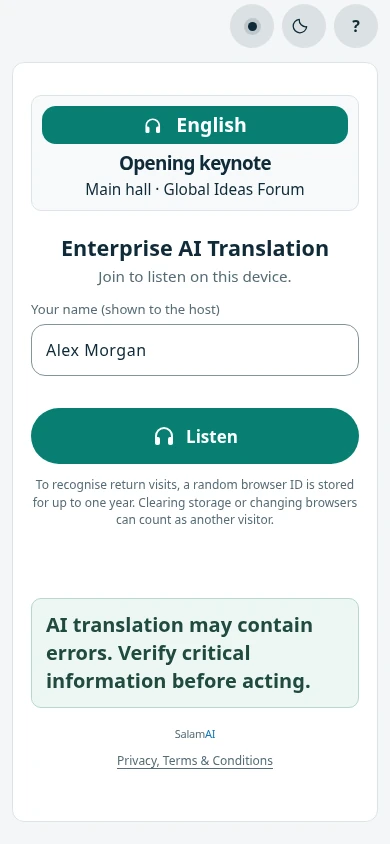
Listeners see the language, the talk and the hall before they join. They enter a name for the host and tap Listen. Nothing to install.
Audience settings
Add your organiser name and logo to the audience page and QR codes. The SalamAI logo is used unless an organiser logo is configured. Branding applies across your language links; sharing settings remain separate for each language.
Listeners and participants can choose from 37 interface languages. This changes buttons and menus, not the translation language or its availability.
Listeners can change text size, expand the reading area and choose light or dark mode. They can show Words or Sentences. An optional headphones checkbox asks for confirmation; it does not detect headphones.
If session documents are enabled, turn on listener summaries before the event. Approved listeners can request a summary or full transcript in their language. When the run stops and processing finishes, they can download a PDF or choose email. See summaries and transcripts →
After the event
The organiser enables listener summaries before starting the event; capture and document processing must be available for the organisation.
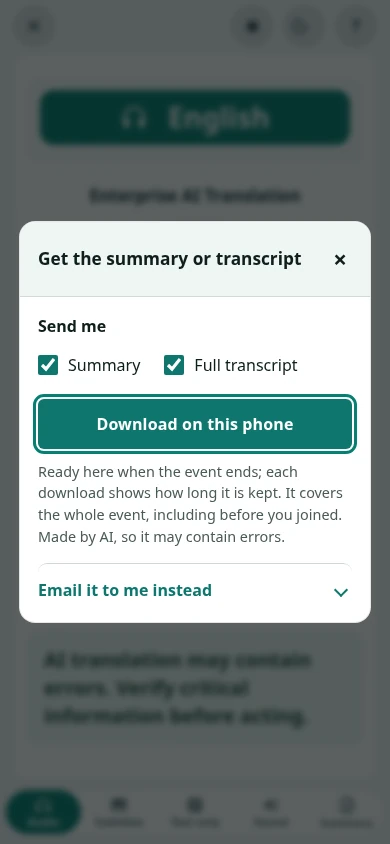
Approved listeners select a summary, a full transcript or both in their Companion page. Download on this phone is the main path; email is optional.
Each run, from Start to Stop, gets its own documents. When the operator presses Stop, requested documents are prepared. Listeners can then download their private PDFs, subject to the link’s access and retention rules.
Inside SalamAI
Listeners can request a summary or full transcript. They can download it on their phone or choose email.
Listening in a shared hall
Bring headphones or earphones for translated audio. This stops your phone speaker from disturbing other guests. You can read captions without headphones if the organiser enables them.
Check Companion requirementsCommon questions
Scan the QR code or open the link for your language. Enter the details requested by the organiser and wait for approval if needed. Tap Listen or Play to enable audio. Keep the page open.
Use headphones or earphones for translated audio in a shared hall. This stops phone speakers from disturbing other guests. If the organiser allows captions, you can read them without headphones.
Yes, when the organiser enables session documents. Approved listeners can request a summary, a full transcript or both. When the run stops and processing finishes, they can download a PDF on their phone or choose email delivery. See summary and transcript options.
Plan your event
Tell us your languages, crowd size and audio setup. We’ll show you SalamAI live and suggest the right setup for your event.
Already have an account? Open the console →