One console for each room
Open SalamAI in several browser tabs. Each tab is its own console with its own name, audience links and runs, so one sign-in can run Hall 1 and Hall 2 side by side without mixing them up.
SalamAI brings audience links, event messages, translation stations and session controls into one workflow. Prepare before the event, manage access while it runs and review audience activity afterwards.
Open the consoleIn short
Updated
Plan it in three stages. Before the event, set up an audience link and QR code for each language, choose access rules and expiry, add your organiser logo where available and test every link on a guest phone. During the event, the operator starts and stops translation from the console, manages audience access and uses event messages, while Autosleep can pause eligible extra outputs when no listeners remain. When each talk ends, Stop closes that run and prepares any listener documents you enabled, and audience reports show how people joined and which languages they used, run by run. Translation stations for counters can run alongside in a campaign.
Create an audience link and QR code for each language, set access and expiry, and add your organiser logo where available. Test every link on a guest phone, then print or display the QR codes. Check the console computer, the audio path from the mixer and the venue internet with the number of listeners you expect. If you want listener documents, enable them before the session. Brief anyone running translation stations, and prepare a short announcement telling guests to bring earphones and that translated audio runs about 6–20 seconds behind the stage. Finally, name the session in each console and agree who presses Stop at the end of each talk, so connected time ends when the programme does.
Read nextEvent audience reports →Translation privacy & security →
Before. During. After.
Prepare language links, organiser branding and a welcome message before listeners arrive.
Run audio and captions, manage audience access and watch the session from one dashboard.
Press Stop when a talk ends. The run closes, requested documents are prepared and listeners see your closing message. Links stay ready for the next run.
Explore observed participation, language demand and executive reporting after the event.
Inside SalamAI
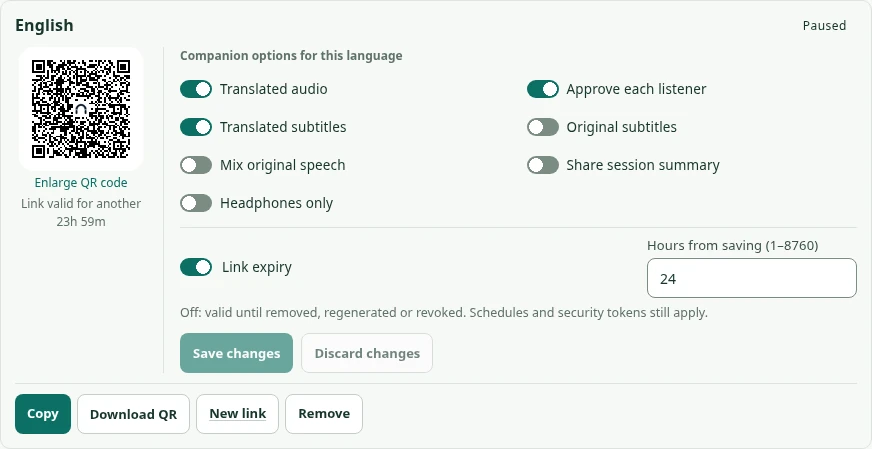
Share a QR code for each audience language. It uses the SalamAI logo by default, or your organiser logo when configured. Set audio, captions and joining rules in the same place.
Several rooms, one team
Open SalamAI in several browser tabs. Each tab is its own console with its own name, audience links and runs, so one sign-in can run Hall 1 and Hall 2 side by side without mixing them up.
Before Start, the run bar asks for the session and run names, such as Main hall · Opening keynote. Phones show the run’s name and follow any rename.
Reports, History, Rec & Transcripts and statistics can be grouped and filtered by console, session and run. The CSV export includes all three. See audience reports →
Set “Stop this run after” and “Keep this session’s files” for each event, within your organisation’s limits, so a forgotten session does not run on. See how billing works →
Before and after the event
Write a welcome and a closing message for this event, or use your organisation’s default pair. Optional translations help adapt them for your audience. The closing message shows once per run.
Prepare a QR code and audience link for each language. Add your organiser logo when configured. Changing the logo does not change the link inside the code, so printed codes still work within their access and expiry rules. See audience phone listening →
Pressing Stop ends that run and closes it for listeners. The language links stay ready, so the next talk starts with the same QR codes, within their expiry and access settings.
Automatic pause controls
Eligible additional translation outputs can start as listeners arrive and pause when the last listener leaves.
Eligible streams can sleep when listeners stay connected but inactive, with a clear action to resume listening.
Session management
See active sessions, audience links, remote speakers and daily usage together. Start channels individually or together, and keep operator monitoring separate with its own language, device and level.
Coordinate timed two-way conversations, delegated access and Help requests across your event. Platform administrators also have live health and cross-organisation oversight within their permissions. Explore campaign stations →
Clearer connection states and phone diagnostics help find audio problems. Where supported, reshare stopped tab or screen audio without creating a new translation session. Errors stay in status messages rather than the captions.
Export a password-protected configuration backup, preview a restore and resolve missing devices before the next event. Explore files and recovery →
Audience reports
After the event, see how many listeners joined, which languages they picked and when the hall was busiest.
Unique listeners are browsers, not verified people. Listening time is an estimate.
Common questions
Yes. Set up a link for each language and configure its access and expiry. Add your organiser logo where available. Test every link on a guest phone before displaying or printing its QR code.
A run is one Start to Stop in a console, such as Main hall · Opening keynote. Each run gets its own name on phones, its own report rows and its own summary and transcript. Stop ends the run; the language links stay ready for the next one, within their expiry and access rules.
Eligible extra outputs can pause with Autosleep when no listeners remain. Other active or idle connections may still use billable time. Check the session status and connected-time billing.
Yes. Open SalamAI in one browser tab per hall. Each tab is its own console with its own name, language links and runs, and reports can be filtered by console, session and run. Each console needs its own audio source, and each output language is billed for its connected time.
Plan your event
Tell us your languages, crowd size and audio setup. We’ll show you SalamAI live and suggest the right setup for your event.
Already have an account? Open the console →